Friday, June 2, 2017

DISCLAIMER:

THIS IS AN INITIAL BUILD WHICH MAY HAVE MANY MORE BUGS THAN YOU CAN IMAGINE. HAVE A BACKUP BEFORE FLASHING THIS AND TRY AT YOUR OWN RISK. Installing a custom ROM on a Galaxy S3 Neo (i9300i) may require the bootloader to be unlocked, which may VOID your warranty and may delete all your data. Before proceeding further you may consider backup all data on the phone. You are the only person doing changes to your phone and I cannot be held responsible for the mistakes done by you.

Status of Lineage OS 13 for Galaxy S3 Neo (i9300i) Marshmallow ROM:

WHAT’S WORKING:
– Not Known
KNOWN ISSUES:
– Camera
– Many other things


REQUIRED LINKS AND FILES FOR Lineage OS 13 for S3 Neo MARSHMALLOW CUSTOM ROM:


If there is no in-built ROOT or it does not work for some reason then you can try SuperSU ROOT to gain ROOT access.

How to Customize the Status Bar on Android (Without Rooting)

Have you ever wanted to change the status bar on your Android phone or tablet? Maybe you wanted to change the position of the clock, add a battery percentage, or just get a different look.

Whatever your reason, there’s a simple way to customize your status bar–and it doesn’t even require root access. This is possible thanks to an app called Material Status Bar, which you can download for free from the Google Play Store.

Step One: Install Material Status Bar and Grant It Permissions

Download and install the app from the Play Store, find it in your app drawer and open it. You’ll be prompted to grant the app some pretty far-reaching permissions, but they’re necessary for the app to work.

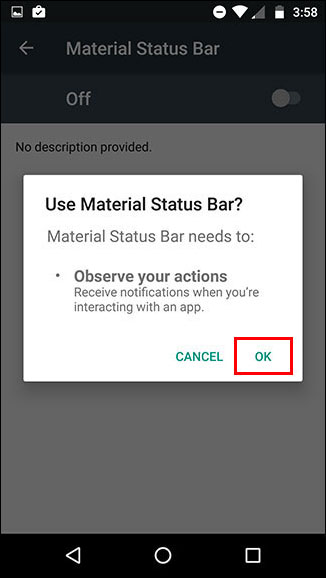
The three things you’ll have to toggle within Android’s settings are Accessibility, Notifications, and Write. The app will give you shortcuts to all three. First off, tap on Accessibility.


On that screen, tap Material Status Bar.


It will double-check to make sure you want to grant Material Status Bar that permission. Tap OK.


Next, use your back button to return to the Material Status Bar app and select Notifications. Toggle on the switch in the upper right and then tap allow.


And finally, return back to the app again using your back button and select Write. Toggle on the switch in the upper right.


You’ve made it! You successfully set up the app. Now let’s play around with it.
Step Two: Customize the Status Bar

The main menu of the app has a few options, so let’s run through them. But first, to activate the app, make sure the toggle in the upper right corner is turned on, as shown below.


Under Theme, you have four options: Lollipop, Gradient, Dark Gradient, and Flat. By default, it’s set to Lollipop, which is what you’re seeing above. However, I’m a big fan of the flat theme, which looks like this:


It automatically matches the status bar to the exact same color as the action bar (that’s what Google calls the solid color bar at the top of most apps). If it fails to pick the right color for an app, or you just what something a little different, you can set custom colors for every individual app under App List.


You can also take a screenshot of any app and use Color Picker to pull colors directly from it. This is what my Chrome browser looked like without Material Status Bar:


And this was Chrome after I set a custom orange color for the status bar:


The Transparent Status Bar option is intended solely for your home screen, and it only works if you have a static (non-scrolling) home screen image. My scrolling home screen threw it off a little bit, as you can see:


It also can’t do a transparent status bar for any other apps. While most apps don’t use a transparent status bar, some–like Google Maps–will lose their transparency and use your default color option.

If you swipe in from the left, or tap the three-line icon in the upper left, you can access several more menus.

Under Customize, you can make a few more little tweaks that I’ve found really useful, like setting a center clock and showing a battery percentage.

Under the Notification Panel menu, you can change how the notification panel looks when you pull down from the status bar.


There’s not a whole lot to work with here, given that there are only three themes that are very slight variations on each other. Here’s one of them:


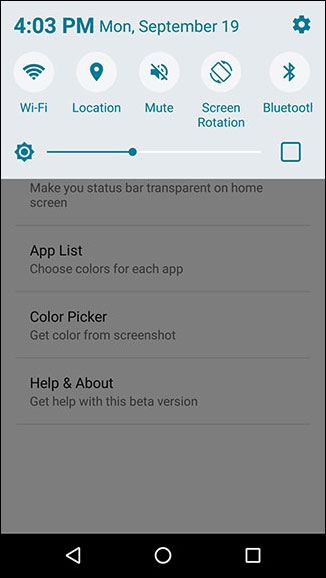
Pre-Nougat versions of Android generally require one swipe down to see notifications and a second swipe down to reveal the Quick Settings. Material Status Bar, however, takes a more Samsung-like approach by having a horizontally-scrolling Quick Settings panel visible at all times.

You can also change how the Heads Up notifications function in this app, including the ability to have them appear at the bottom of the screen or just slightly lower so they don’t cover the status bar. The only two “styles” available are dark or light.


And if you ever move to a new device, flash a new ROM, or have to reset your current device for some reason, you can easily make a backup of the app’s settings and restore them at any time.


If you have a long list of custom app colors, this could be a huge time saver.
Step Three: Get Rid of Ads with the Paid Version (Optional)

Material Status Bar has both a free version and a $1.50 Pro version. The free version, which I tested, is perfectly functional. The most annoying aspect is the rather frequent full-screen ads, but they only happen while you’re in the app. And since you can just set up the app once and then never open it again, they’re really not much of a bother.

The two major reasons you might want to upgrade to the Pro version are: the ability to use your stock notification panel with Material Status Bar, and access to more notification panel themes. Obviously, it removes ads too.
Here’s what one of those alternative themes looks like:


So if you’re unhappy with how the notification panel functions in the free version, it might be worth the mere $1.50 to spring for the Pro version.

And that’s all there is to it! With this little app, you can have a gorgeous, customizable Material Design status bar.

If this wasn’t exactly what you were looking for, you might want to try rooting your device to get some deeper customizations, like the ability to have an Android Nougat-style notification panel. And regardless of what tweak you go for, you can always add some app shortcuts into your notification panel.

Thanks for Read.

AGE.

Are you Android user.? Almost 90% of Our user use Android Os. So today i come with lists of All Android Version (Old and New) . As you know Android is a Linux-based operating system designed for Mobile and Tablet and Smartphones Which was released on 5 Nov. 2007 with Android Beta Version. And was developed by Google and The Open Handset Alliance (OHA). The first Commercial version of Android 1.0 was released on 23 Sep – 2008.
Here you can know all latest Android version name, photos and with its latest update.
After Google announcing the new version of Android Nougat 7.0, Now again rise the question about the name of Android 8.0 (See below for more info).

Below are the Lists of All Android Version :

Below are the latest Android version with photos.

#1. Android 1.1

Android 1.1 Version was released on 9 Feb, 2009

#2. Android 1.5 Cupcake

Android 1.5 Cupcake was released on 30 April, 2009 Which was totally based on Linux kernel 2.6.27. Android 1.5 was the first release officially use a codename based on a “dessert item” which is known as Cupcake.
android_1-5-cupcake

#3. Android 1.6 SDK – Donut

Android 1.6 Donut was released on Sep 15, 2009 Which was based on Linux kernel 2.6.29.
android_1-6-donut

#4. Android 2.0 SDK – codenamed Eclair

Android 2.0 Codenamed Eclair was released on Oct 26, 2009 Which was based on Linux kernel 2.6.29.
android_2-1-eclair

#5. Android 2.2 Froyo

Android 2.2 Froyo was released on May 20, 2010 Which was based on Linux kernel 2.6.32
android_2-2-froyo

#6. Android 2.3/2.3.7 Gingerbread

Android 2.3 Gingerbread SDK was released on Dec 6,2010 Which was based on Linux kernel 2.6.35
android_2-3-gingerbread

#7. Android 3.0/3.2 Honeycomb

Android 3.0 Honeycomb was released on Feb 22, 2011 Which was based on Linux kernel 2.6.36. This first device using this version was Motorola Xoom tablet, was lunched on 24 Feb, 2011.
android_3-2-honeycomb

#8. Android 4.0 Ice Cream Sandwich

Android 4.0 Ice Cream Sanwich was released on Oct 19, 2011 Which was based on Linux kernel 3.0.1. Google’s Gabe Cohen Started this Android 4.0 Version with “theoretically compatible” which production on any Android 2.3.x device.
android_4-icecreamsandwich

#9. Android 4.1 Jelly Bean

Android 4.1 Jelly Bean was announce on June 27, 2012 at the Google I/O conference by Google Which was based on Linux kernel 3.0.31. This Android 4.1 Jelly Bean was released to the Android Open Source Project on July 9, 2012. The first Android 4.1 Jelly Bean device is Nexus 7 tablet which was released on July 13, 2012.
android_4-1-jellybean

#10. Android 4.4 Kitkat

Android 4.4 Kitkat was announced on Sep 3, 2013 by Google. This Android 4.4 was optimised to run on a huge range of smartphone then oldest Android Version, Having 512 MB RAM
android_4-4-kitkat

#11. Android 5.0/5.1 Lollipop

Android 5.0 Lollipop was released on Nov 12, 2014.
android_5-5-lollipop

#12. Android 6.0 Marshmallow

Android 6.0 Marshmallow was released on May 28, 2015 during Google I/O.
android_6-marshmallow


#13. Android 7.0 Nougat

Android 7.0 Nougat is the latest version of Android which will be release in the month of August or September 2016. If you really Want to know full details of Android Nougat then visit Wikipedia to know more about this version.
Android-Nougat-7.0

#14. Android 8.0 Oreo/Orange/Oatcake… (Not Conformed)

Google is not released the name of Android 8 (Latest Android). But after watching Hiroshi Lockheimer (Sunder Pichai hand over Hiroshi Lockheimer as head of Android, Chrome OS & Chromecast) twitter profile, I got – he is indicating the name of Android 8 will be Oreo. Android 8.0 version name will be announced Officially in 2017.

These are 1 to 8 Android version list. Have you noted a interesting point that all Android version are in alphabetical order. ðŸ™‚
Let’s see What will be Next..! (You should bookmark this to get latest Android Update.)
Thanks for Read.
AGE
androidtofuture

While buying a smartphone, we take into consideration various features and specs and the most important of all is ‘the camera’. As with every other technology we have known, the cameras on today’s smartphones have advanced a lot. While the most innovative cameras are on the side of Nokia (now Microsoft), Android smartphones from the likes of Sony, Samsung and others come with great cameras too.
Along with advanced hardware, the software has also become a lot more feature packed. While camera apps from Sony, Samsung, HTC are great and pack-in a lot of features, the stock Android camera app doesn’t offer much. People who want manual controls or more shooting modes on their Android smartphones have to look for an app on the Play Store and as you would expect, there’s no lack of great camera apps on the Play Store.

So, today we’ll tell you the 10 Best Camera Apps for Android:

1. Camera 360 Ultimate

Camera 360
Camera 360 is one of the most popular camera apps available for smartphones. The app brings both professional level manual controls and features along with fun editing features.
The app comes with various camera modes, lots of exclusive filters, free cloud album, sharing features, professional editing tools and more. The user interface is also not clean and not cluttered with all the features on the front. The great thing about Camera 360 is it’s free with the Play Store and there are no ads as well. If you want a great all-in-one camera app for your Android device, Camera 360 Ultimate shouldn’t disappoint you.
Developer: Pinguo Inc.
Compatibility: Android 2.3 and up
Availability: (Free) Google Play Store

2. Cymera

Cymera
Cymera is another popular android photography app on the Google Play Store and along with powerful camera features, the app also brings a ton of editing features. The camera interface of the Cymera includes a number of powerful lenses like Focus, Anti-shake, Convex and more.
The app also brings the ability to create collages along with various filters. There are a ton of editing features like retouching options, beautification and more. Cymera is a must try if you want a simple yet powerful camera app.
Developer: SK Communications
Compatibility: Android 2.3 and up
Availability: (Free) Google Play Store

3. Camera ZOOM FX Premium

Camera ZOOM FX Premium
Camera ZOOM FX Premium is a fast and sleek camera app on Android. This is a paid app but the feature list and the user interface makes it worth it. The app includes the best of both worlds, that is professional camera features and fun features.
The Camera ZOOM FX app brings a fast capture along with lots of camera modes like best photo, stable shot, time lapse, HDR and more. The app also gives you the ability to set a hardware key like the volume rocker as the camera button. The app also packs in powerful post processing along with lots of cool editing features for you to enjoy.
Developer: androidslide
Compatibility: Android 1.6 and up
Availability: (Paid) Google Play Store

4. Camera FV-5

Camera FV-5
Camera FV-5 is another feature packed professional camera app, which brings DSLR grade manual controls and lets you take raw pictures and process them later. The app comes with Lollipop’s Camera2 API implementation along with various advanced features.
The Camera FV-5 offers a DSLR-like viewfinder, which lets you see exposure, aperture,  bracketing settings and more. The feature list is so long that it would take us a lot of time to cover it. In short, you should definitely check this app out  if you are looking for a great professional camera app.
Developer: FGAE
Compatibility: Android 2.2 and up
Availability: (Paid) Google Play Store

5. DSLR Camera Pro

DSLR Camera Pro
The DSLR Camera Pro is an app for Android users looking to for a full-on professional camera app. The app has been developed by GD Software, who are also behind the great Manual Camera app, which is also featured on our list. The DSLR Camera Pro app has some really powerful features packed in a good interface.
Most of the features are a tap away from the users and there are a number of professional grade features like two stage shutter, movable viewfinder, live histogram, light metering and way more. Some of the features are hardware dependent, so not all smartphones might support them.
Developer: GD Software
Compatibility: Android 4.0 and up
Availability: (Paid) Google Play Store

6. Vignette

Vignette
Vignette is fully featured camera app, which brings a lot of cool and fun features for all the Android users across the globe. Its post processing covers whatever your stock camera would lack.
The Vignette app brings a number of modes like time lapse, touch to focus, photo booth, digital 10x zoom and more. The app also brings cool effects with 70 customisable filters and 50 frames. It also brings features advanced features like composition guides, remote shutter and more. Another fun fact is that the app is optimised for taking pictures underwater but for that make sure you have a water resistant smartphone.
Developer: Weavr Studios
Compatibility: Android 1.5 and up
Availability: (Paid) Google Play Store

7. Google Camera

Google Camera
You must be aware of the Google Camera app, which comes pre-installed on Nexus devices. Well if you are not, you should definitely check it out. The app comes with a simple interface but some really cool features.
The app lets you snap pictures quick and fast in several modes like HDR+, Lens blur, Photo sphere, wide angle and panorama. The app also lets you snap pictures while shooting a video. Google Camera also comes with Android Wear support.
Developer: Google Inc.
Compatibility: Android 4.4 and up
Availability: (Free) Google Play Store

8. Manual Camera

Manual Camera
The Manual Control app offers great manual control to Android users and if you use an Android Lollipop running device, the app should work wonders. The app uses Lollipop’s latest Camera2 API, so that means there are some awesome features but you might miss out if you’re not on the latest Android version yet.
The app lets you manually control the ISO, white balance, shutter speed, focus distance and more. The app is also said to be very fast along with additional features like RAW (DNG) capture, geo tagging, Timer, gridlines and more.
Developer: GD Software
Compatibility: Android  5.0 and up
Availability: (Paid) Google Play Store

9. VSCO Cam

VSCO Cam
VSCO Cam is another popular android photography app, which had become popular on iOS first before making its way to Android. The app is a great way to snap pictures, edit them and share them. VSCO uses its own processing technology, which is said bring great pictures.
VSCO allows you to sync your pictures VSCO Grid, which is a social network where the app shows you curated pictures. The app lets you edit your pictures and as the app description says, “VSCO Tools allow for fine-tuning, with the goal to complement, not define, your photographs.” The app is free on the Google Play Store and there are in-app purchases for preset packs.
Developer: VSCO
Compatibility: Android 4.0 and up
Availability: (Free with in-app purchases) Google Play Store

10. ProCapture

ProCapture
ProCapture, as the name suggests, brings some professional camera features for Android users. The app comes with shooting modes like Timer, Burst, Reduces noise, wide shot and panorama.
The app also brings some advanced features like grid and Fibonacci spiral composition aids along with real-time histogram on the screen. The app brings touch to focus and option to set the volume rocker as the camera button.
Developer: NEast Studios
Compatibility: Android 2.2 and up
Availability: (Paid) Google Play Store
These are our Top 10 Android Camera Apps (free and paid) but mind you, all the features listed in the apps might not work with every smartphone. Some features require specific hardware while some need more processing power, so lower end smartphones might miss out on some of the features. Either ways, these apps are great camera apps and you should definitely check them out. Do tell us, if you have any other favourite camera app.


Contact Form

Name

Email *

Message *

Translate

Popular Posts

Blog Archive